
Windows user manual
This manual describes the daily use of the Windows application after installation. To prepare foobar2000, Beefweb, and the application, see the Windows installation method.
1. Open the player
The Windows application is a player that relies on foobar2000. Open foobar2000, then launch lastseen.tools. The screen displays the playlist currently open in foobar2000.
Beefweb connects the application to foobar2000 and transmits its commands over the local network.
2. Player screen
The compact or enlarged player displays the cover art, title, artist, genre, duration, and audio information. It also shows the number of tracks as well as the total and remaining duration of the playback queue.
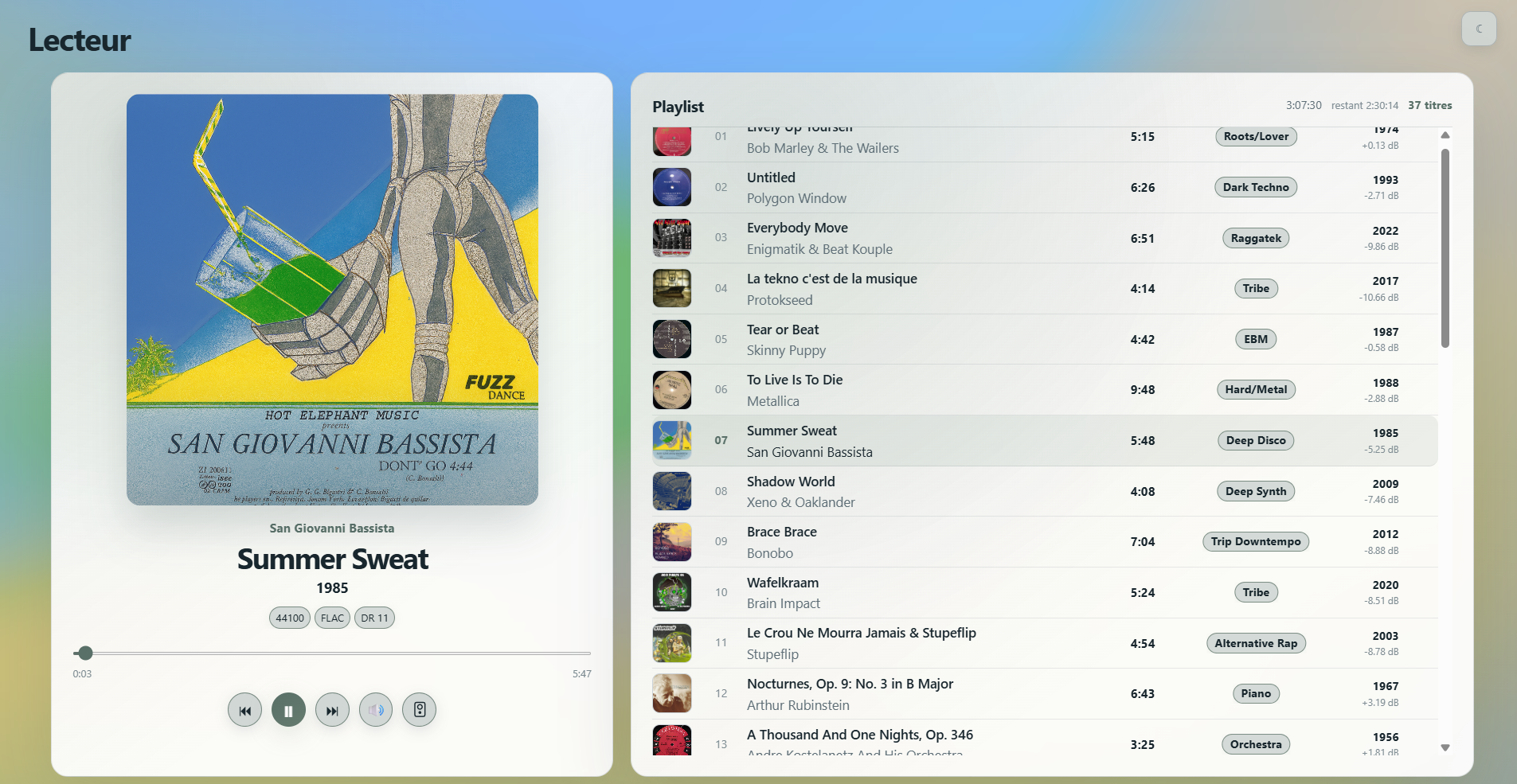
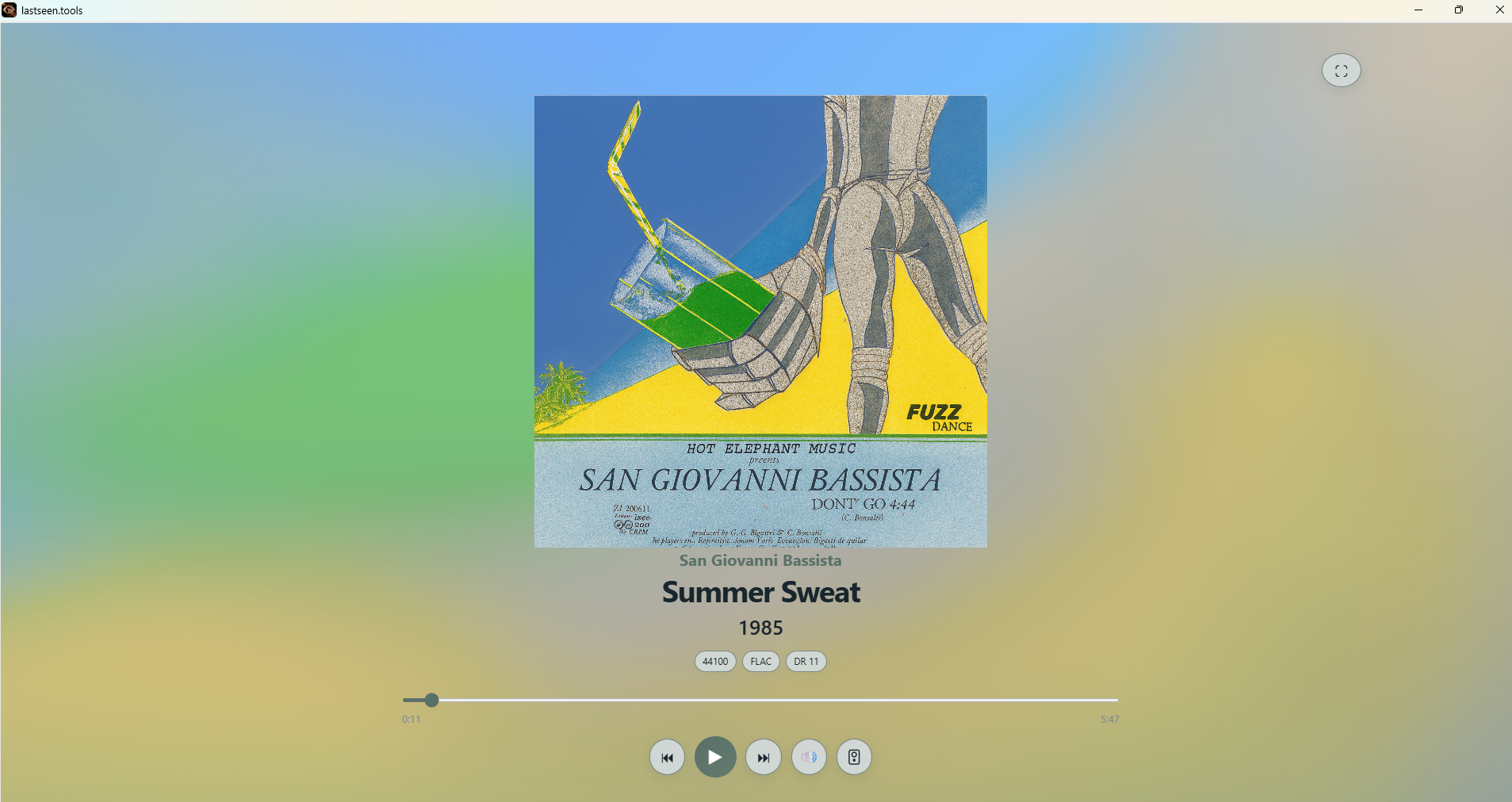
3. Control playback
The main controls allow you to:
- play or pause
- return to the previous track or skip to the next one
- seek within the track
- adjust the foobar2000 volume and the Windows volume separately
- choose an audio output
When several audio outputs are available, the output selector lets you choose the device used by foobar2000. The full-screen button enlarges the interface.
4. Use the playback queue
The playback queue displays the tracks waiting to be played and their order. The playlist open in foobar2000 is the source of this queue. To change the selection, open or edit the playlist in foobar2000; lastseen.tools then refreshes the display provided by Beefweb.
5. Continuity with Android
A playlist created in Playlist Generator for Android can be opened or transferred to foobar2000 with Beefweb when both devices are configured on the same network. The current track resumes from where it stopped.