
Android user manual
This manual describes the day-to-day use of Playlist Generator after installation. To install the APK, prepare Poweramp and connect the app to the PC with Beefweb, see the Android installation method.
Contents
1. The app's three areas
The Android navigation bar divides the app into three areas:
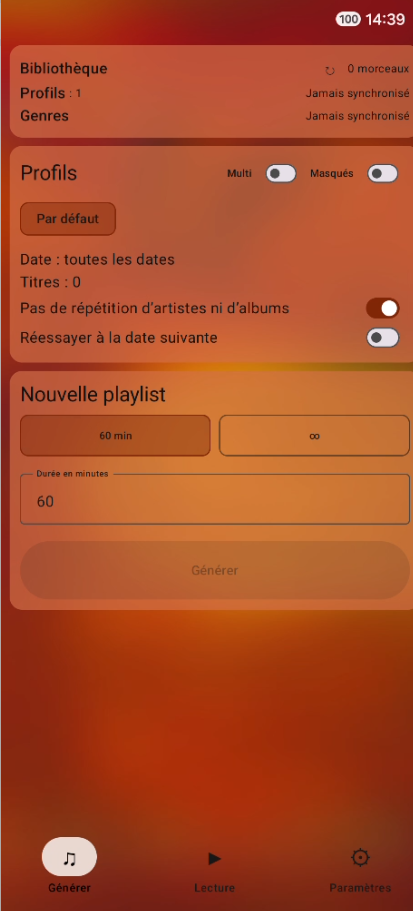
- Generate is used to choose the selection rules and create a playlist (⚠️ dates are currently not taken into account)
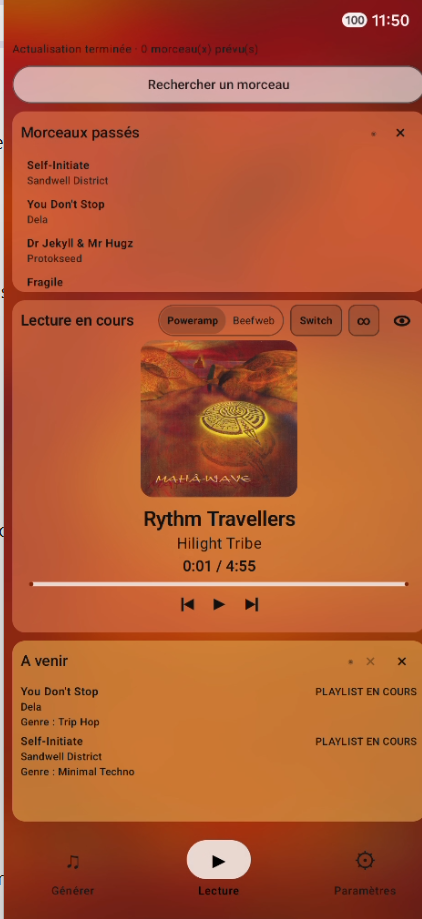
- Player is used to control Poweramp, view previous tracks and see what comes next in the playlist
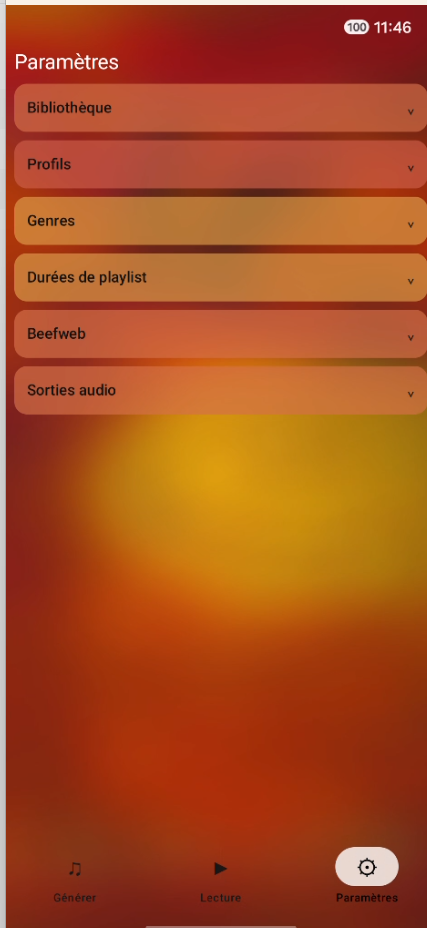
- Settings is used to manage the library, profiles, genres, durations, Beefweb and audio outputs
2. Profiles and genres
A profile is a saved set of generation rules. It stores the allowed genres.
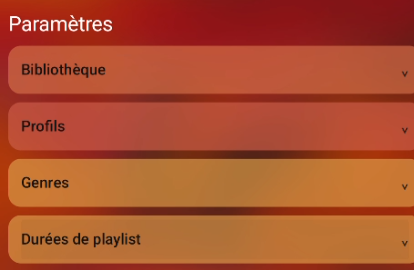
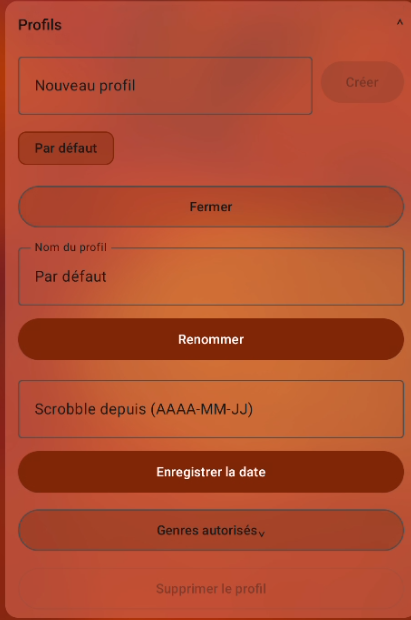
In Settings → Profiles, you can:
- Create and name a profile
- Rename, edit, combine, hide or delete a profile
- Choose the allowed genres
- Calculate the number of tracks and the available duration
A genre is information stored in a track's metadata. The compatibility matrix defines which genres may follow one another. It is directional: the Ambient → Techno and Techno → Ambient transitions are configured separately, with an option to apply the choice in both directions.
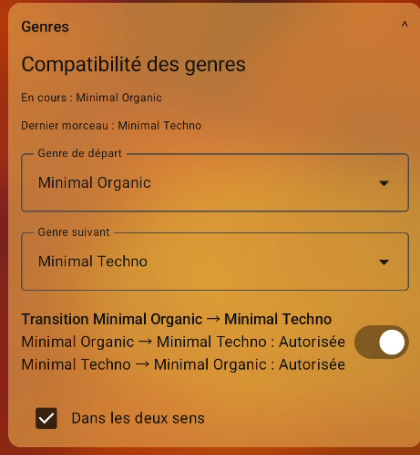
Default compatibility
When no matrix has yet been saved, every transition between known genres is allowed. The matrix is global and applies to every profile. To limit transitions, select the starting genre and the next genre, then disable the transition. Each direction is configured separately; select Both directions when the restriction should apply in both directions.
When a new genre appears after the matrix has been customized, it is added to the genre list. Check its transitions with the existing genres and manually allow the ones you want to keep.
Add or remove a genre from a profile
- Adding a genre includes it in future generations for that profile. Its transitions follow the matrix rules
- Removing a genre excludes it from future generations for that profile. The genre remains available in the library, in other profiles and in playlists that have already been created
3. Generate a playlist
Choose profiles
In Generate, tap the profile you want to use. Profiles are displayed as horizontal buttons.
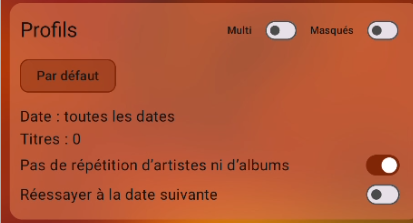
- Multi lets you select several profiles and combine their selections
- Hidden also displays the profiles you have chosen to hide (currently unavailable)
- Tracks indicates the number of tracks available for the current selection
Generation uses the allowed genres and the compatibility rules between genres.
Choose the duration
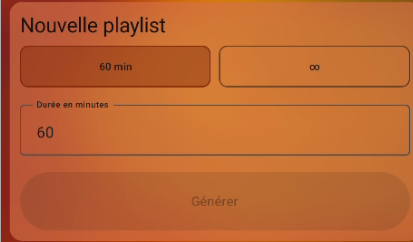
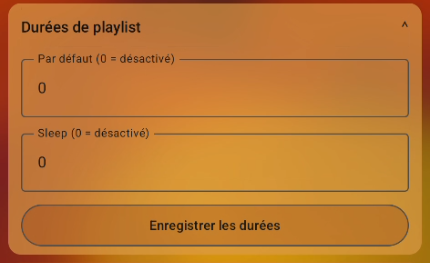
- The first preset uses the default duration defined in Settings
- The second preset uses the Sleep duration defined in Settings
- 60 min prepares one hour of music
- The duration field lets you enter a number of minutes directly
- ∞ enables infinite mode
The two custom presets are displayed only when a duration greater than zero has been saved in Settings → Playlist durations.
Generate and use the result
Tap Generate. While calculating, the app displays Generation in progress…. The result shows the number of tracks, the total duration, then the numbered list of tracks with their title and artist.
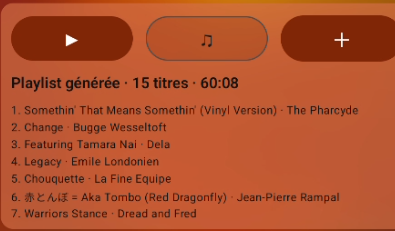
Each of the three buttons above the result has a different action:
- ▶ opens the playlist in Poweramp, starts playback and leaves the Generate screen displayed
- ♫ opens the playlist in Poweramp, starts playback and then displays Playlist Generator's full-screen player
- + adds the tracks after the current Poweramp playback, starting with a track compatible with the genre of the current track
Infinite mode
Infinite mode starts with two tracks. When Poweramp reaches the last generated track, Playlist Generator adds a new one while respecting the profiles, compatible genres and repeat limits.
The ∞ button in the player lets you enable or stop this mode and choose the profiles used for subsequent additions. New tracks stop being added when no other compatible track is available.
4. Use the Player view
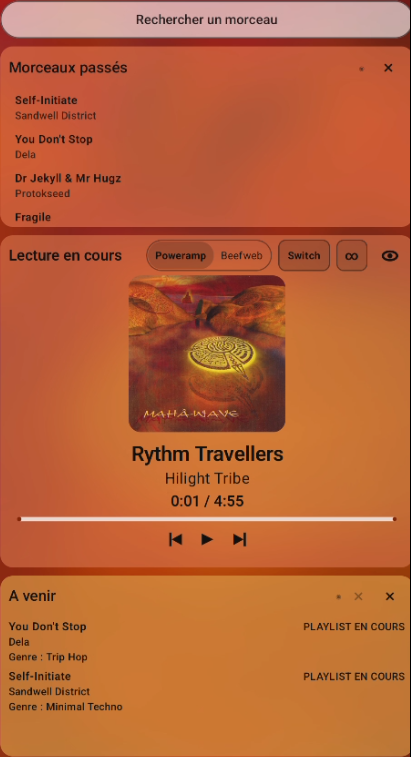
The Player tab opens the player. The normal view brings together search, previous tracks, the current playback and upcoming tracks.
Search for a track
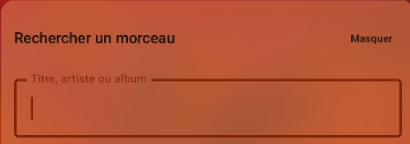
Search accepts a title, artist or album. Tap a result to offer to add it to the Poweramp queue.
A queue is a temporary list of tracks placed before the normal remainder of the playlist. When a playlist is playing, adding a track to the queue lets it play immediately after the current track.
Previous tracks
The Previous tracks section displays the title and artist of earlier tracks when the Poweramp history is available. It can be collapsed or cleared.
Now playing
The Now playing card displays the cover art, title, artist, elapsed time, duration and progress bar. The buttons let you return to the previous track, play or pause and skip to the next track. Tap the cover art or track information to open the full-screen player.
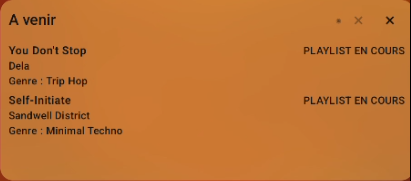
Up next
The Up next section combines the Poweramp queue and the next tracks in the playlist. Each row displays the title, artist, genre and its source: QUEUE or CURRENT PLAYLIST.
The controls let you move a track in the queue, remove it, clear the queue or remove the remaining tracks from the current playlist.
5. Use the full-screen player
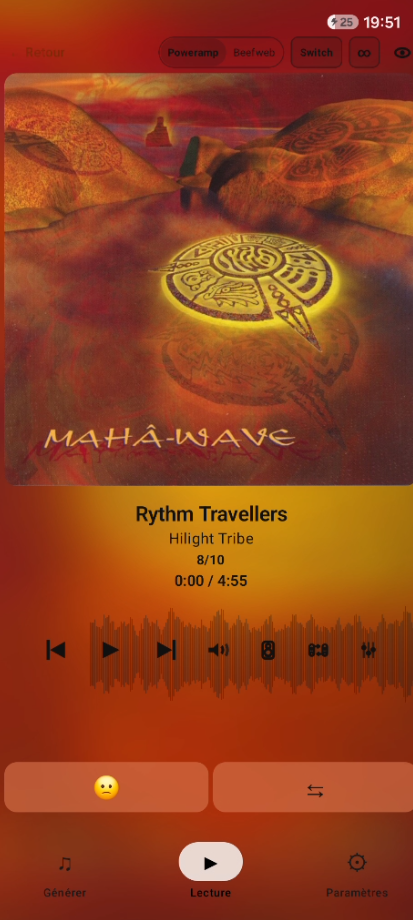
The full-screen player displays large cover art, the title, artist, track position in the playlist as x/y, elapsed time and total duration. It also keeps the phone screen on during playback.
Top bar
- Back returns to the normal Player view
- Poweramp / Beefweb chooses the controlled player
- Switch transfers the playlist, track, position and playback state from Poweramp to foobar2000
- ∞ manages infinite mode and the profiles it uses
- Eye hides or displays the top-bar controls
Choosing Poweramp or Beefweb simply changes which player is controlled. The Switch button performs the full playback transfer.
Waveform and progress
The waveform represents variations in the audio signal. A fixed marker indicates the current position. Tap or drag the waveform to move forward or backward in the track.
For an accessible local file, the waveform represents the file's signal. For a remote track, the app displays a stable replacement waveform.
Playback and sound buttons
The buttons below the waveform are displayed in this order:
- Previous track
- Play or pause
- Next track
- Android media volume
- Audio output selection
- Quick switch between outputs A and B
- Equalizer
An audio output is the device that plays the sound, for example the phone speaker, Bluetooth headphones or a network player. The selector indicates the active output. The A/B shortcut switches between two outputs configured in advance, separately for Poweramp and Beefweb.
Genre actions
- 🙁 removes the current track's genre from the selected profiles and removes upcoming Poweramp tracks with that genre in infinite mode or during the next generation
- ⇆ blocks the transition between the previous genre and the current genre in one direction or both directions
These actions let you configure profiles and genre transitions as you listen.
6. Poweramp equalizer
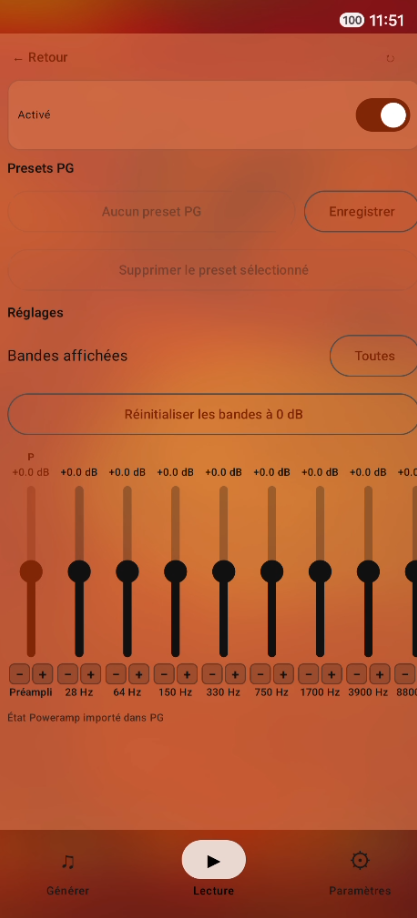
The equalizer changes the level of several frequency ranges. It is available from the full-screen player when Poweramp is selected.
You can:
- Enable or disable the equalizer
- Use ↻ to import the current Poweramp state
- Create, apply, replace or delete a Playlist Generator preset
- Display 1 to 30 bands or all available bands
- Reset the preamp and all bands to
0 dB - Adjust each value from
-15 dBto+15 dBwith the − and + buttons in0.1 dBsteps
The preamp changes the overall level before the other bands. The vertical sliders provide a visual representation; use the − and + buttons for precise adjustment.
7. Continuity with the PC
Beefweb lets you control foobar2000 from Android and choose its playlist and audio output. It also lets you transfer playback from Poweramp to foobar2000.
The music roots configured during installation match the same file on the SD card and on the PC. See the Android installation method to enter them.
8. Settings
Settings include:
- The library and its refresh
- Profiles and genres
- Playlist durations
- Beefweb and music roots
- Audio outputs and A/B shortcuts
Some Bluetooth or Poweramp outputs may require the corresponding Android permission or the Playlist Generator accessibility service to be enabled.