
Android app installation method
Contents
Prerequisites
- Android 10 or later. The public app is named “Playlist Generator”
- A music library in a `Music` folder on a removable SD card (⚠️ currently required to use the app).
- Poweramp. It is required to play playlists locally on the phone
- Optional: Beefweb for continuity with the Windows app
Installation
1. Install the APK
- Download
playlist-generator-mobile-v1.0.apkfrom the Android Releases. - Open the file on the phone, temporarily allow it to “install unknown apps”. Install and then open Playlist Generator.
2. Prepare the library
Place the audio files in the Music folder on a removable SD card inserted in the phone.
3. Grant permissions
- In
Settings → Library, tap Refresh library - Grant the “Music and audio” permission.
- Also allow nearby-device detection when Android asks for it.
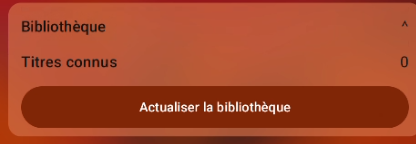
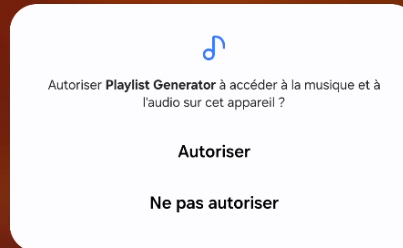
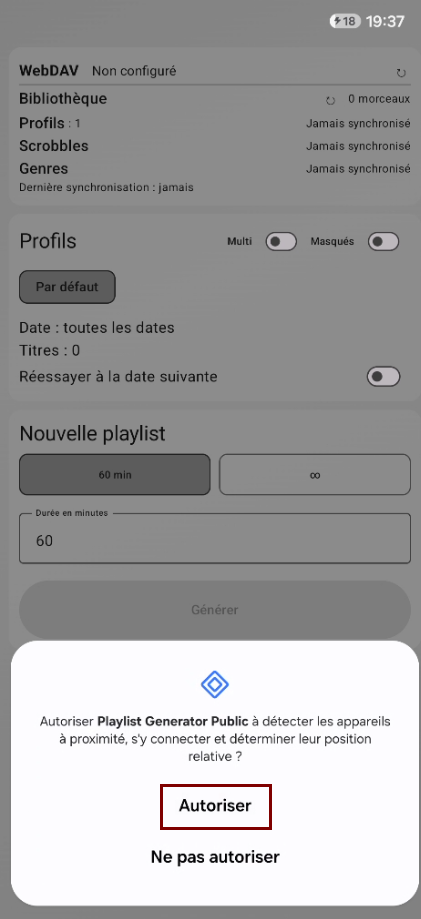
Prepare Poweramp
- Install Poweramp separately, open it once and accept its permissions
- Have it scan the same
Musicfolder on the SD card:
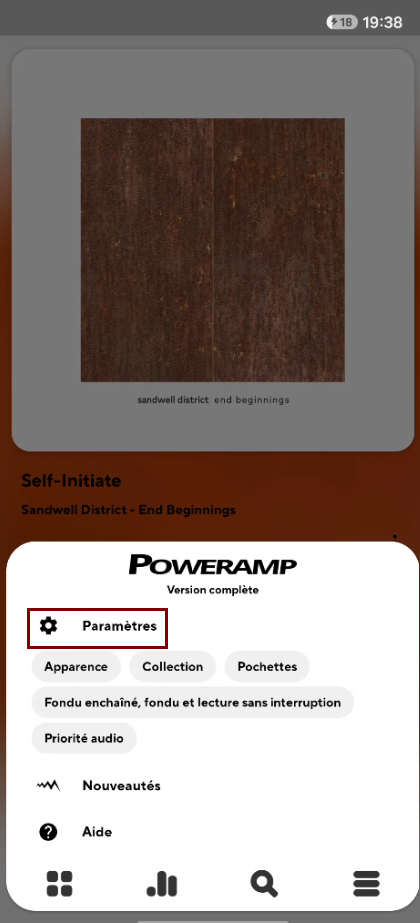
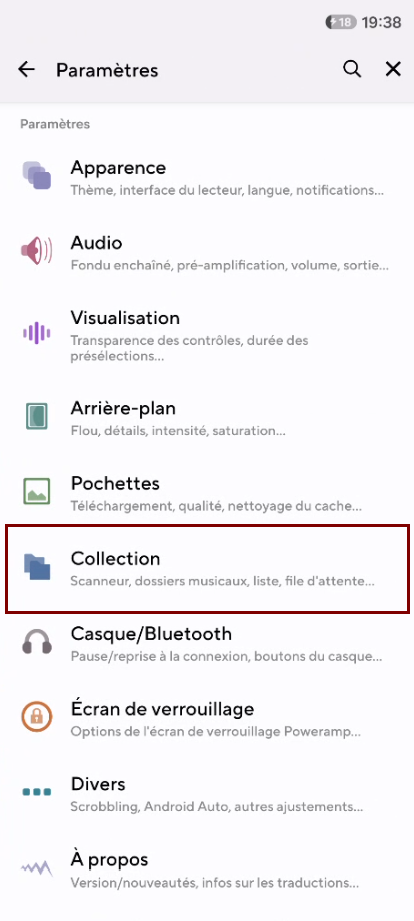
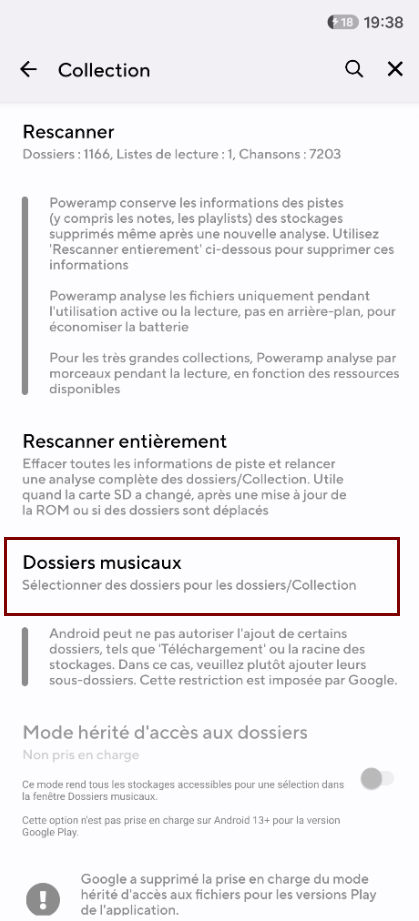
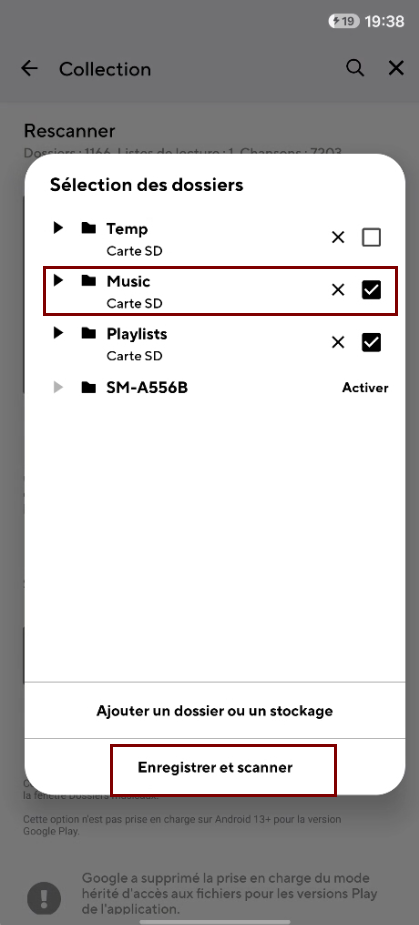
- Then reopen Playlist Generator.
Connect Android to the PC with Beefweb (optional)
This step is optional for generating and playing playlists on Android. It becomes necessary when transferring playback between Poweramp and foobar2000.
1. Prepare the PC
On the PC, follow the PC installation method, then launch foobar2000 with Beefweb.
⚠️ The phone and PC must be on the same local network.
2. Find the PC address
On the PC, right-click the Start icon and choose “Terminal”.
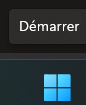
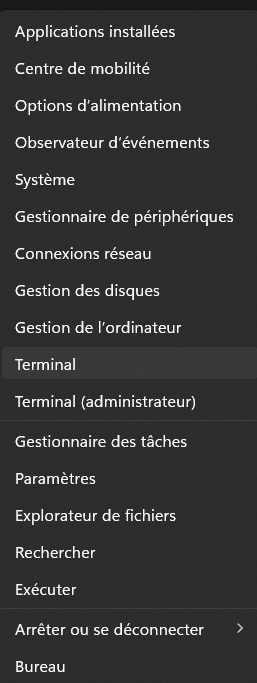
- Run the
ipconfigcommand.
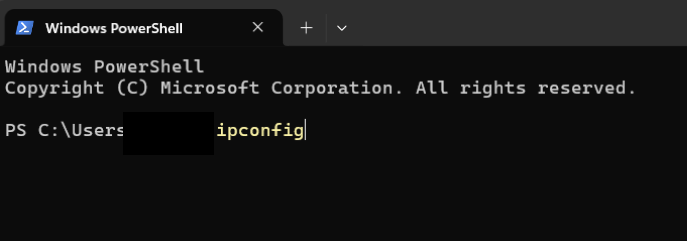
- Find the IPv4 Address of the Wi-Fi or Ethernet connection in use, usually in the form
192.168.x.x.

3. Find the Poweramp file root
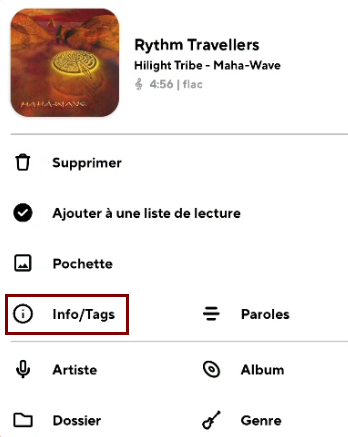
- In Poweramp, press and hold a track in the
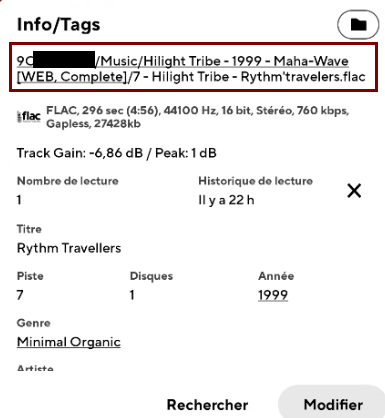
Musicfolder, then choose Info/Tags. - The full file path appears at the top of the screen. The Poweramp file root is the part up to and including
Music. It may look like9CXX-XXXX/Musicfor an SD card.
4. Configure Beefweb
- Open `Settings → Beefweb` in Playlist Generator on Android.
- Enter the PC address found above with the Beefweb port (shown in the foobar component options, 8880 by default), for example
http://192.168.1.25:8880. - Under PC root as seen by Beefweb, enter the Windows folder containing the same library (for example
D:\Music).
⚠️ The folders after the PC and Android roots must have the same organization.
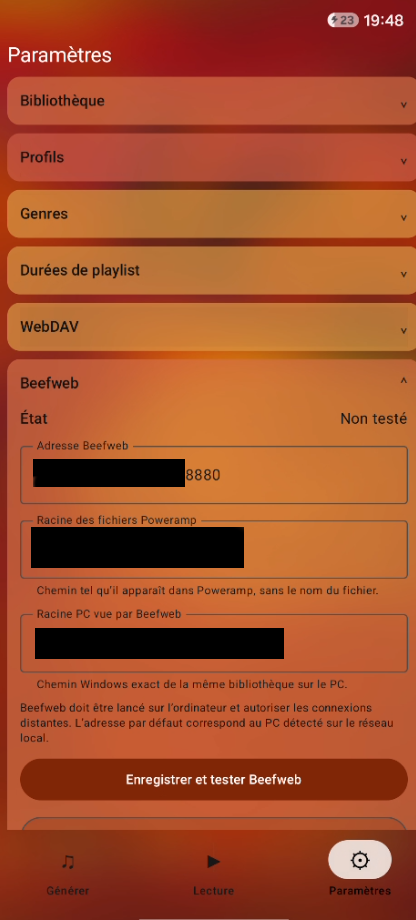
- Choose Save and test Beefweb.